Introduction
What is Keel?
Keel aims to be a simple, robust, background service that automatically updates Kubernetes workloads so users can focus on important things like writing code, testing and admiring their creation.
While Container Builder and Google Container Engine (Kubernetes) make a great pair and building images and running your workloads - there is a missing gap: who/what updates deployments when new images are available? maybe it is you:
- update image tag in
deployment.yaml - run
kubectl apply -f deployment.yaml
These updates can be repetitive, lacking control (user needs access to the cluster) and simply not necessary. This is what Keel solves: pluggable trigger system (webhooks, pubsub, polling) and pluggable provider system (Kubernetes, Helm).
Installation
Keel doesn't need a database. Keel doesn't need persistent disk. It gets all required information from your cluster. This makes it truly cloud-native and easy to deploy.
Prerequisites
- Kubernetes environment (easiest way to get Kubernetes up and running is probably Google Container Engine or Docker for Mac with Kubernetes or Minikube.
- kubectl: Kubernetes client
We assume that your kubectl can access Kubernetes environment. If you have multiple environments, you should use kubectl config use-context [your cluster] command.
Deploying with kubectl
You can find sample deployments in https://github.com/keel-hq/keel repository under deployments directory. You can either clone whole repository or just download that file. Edit settings (depending on your environment whether you want to use Google Container Registry PUBSUB) or notifications and create it. All configuration is done through environment variables.
If you don't want to maintain the manifests yourself, you can render them from the official Helm chart and pipe the result straight into kubectl. This doesn't create a Helm release, it only generates plain YAML:
helm repo add keel https://keel-hq.github.io/keel/
helm repo update

# To pin a specific Keel version, add --set image.tag=x.x.x
helm template keel keel/keel \
  --namespace keel \
  --set createNamespaceResource=true \
  --set basicauth.enabled=true \
  --set basicauth.user=admin \
  --set basicauth.password=admin | kubectl apply -f -
This command will deploy Keel to keel namespace with enabled basic authentication and admin dashboard.
To check whether it successfully started - check pods:
kubectl -n keel get pods
You should see something like this:
$ kubectl -n keel get pods
NAME                    READY     STATUS    RESTARTS   AGE
keel-2732121452-k7sjc   1/1       Running   0          14s
Uninstalling Keel
To remove Keel from your system, simply delete Keel namespace
kubectl delete namespace keel
Deploying with Helm
Prerequisites:
- Helm - https://helm.sh/
- Kubernetes
You need to add this Chart repo to Helm:
helm repo add keel https://charts.keel.sh
helm repo update
Install through Helm (with Helm provider enabled by default):
Keel must be installed into the same namespace as Tiller, typically
kube-system
helm upgrade --install keel --namespace=kube-system keel/keel
If you work mostly with regular Kubernetes manifests, you can install Keel without Helm provider support:
helm upgrade --install keel --namespace=keel keel-charts/keel --set helmProvider.enabled="false"
You can view all available settings in our chart directory. Feel free to download values.yaml and edit the settings.
Uninstalling the Chart
To uninstall/delete the keel deployment:
helm delete keel
Environment variables
# Google Cloud configuration
PROJECT_ID=<project ID> - Enable GCR with pub/sub support
PUBSUB - Set to '1' or 'true' to enable GCR pubsub

# Database location (optional, although if you want stats and audit logs to persist, set it)
XDG_DATA_HOME=/data

# Authentication
BASIC_AUTH_USER=<admin username>
BASIC_AUTH_PASSWORD=<admin password>
AUTHENTICATED_WEBHOOKS=<true/false>
TOKEN_SECRET=<optional JWT signing secret, auto generated if empty>

## Helm configuration
HELM_PROVIDER - set to "1" to enable Tiller
TILLER_ADDRESS -

# Enable AWS ECR
AWS_ACCESS_KEY_ID=<access key ID>
AWS_SECRET_ACCESS_KEY=<access key>
AWS_REGION=<region>

# Enable outgoing webhooks
WEBHOOK_ENDPOINT=<https://your-endpoint>

# Enable mattermost endpoint
MATTERMOST_ENDPOINT=<mattermost incoming webhook endpoint>

# Enable shoutrrr notifications (ntfy, Gotify, Telegram, Matrix, Pushover, OpsGenie, PagerDuty and more)
SHOUTRRR_URLS=<whitespace separated shoutrrr service URLs>
SHOUTRRR_TIMEOUT=<per service send timeout, defaults to "10s">

# Slack configuration
SLACK_BOT_TOKEN=<the bot token>
SLACK_APP_TOKEN=<the application level token>

SLACK_CHANNELS=<slack channel, defaults to "general">
SLACK_APPROVALS_CHANNEL=<slack approvals channel, defaults to "general">
SLACK_BOT_NAME=<slack bot name, defaults to "keel">

# Enable hipchat approvials and notification
HIPCHAT_TOKEN
HIPCHAT_CHANNELS
HIPCHAT_APPROVALS_CHANNEL
HIPCHAT_APPROVALS_BOT_NAME
HIPCHAT_APPROVALS_USER_NAME
HIPCHAT_APPROVALS_PASSWORT

# System wide notification level (webhooks, chat)
NOTIFICATION_LEVEL="info"
# Enable insecure registries
INSECURE_REGISTRY="true"
Enabling admin dashboard
To protect the Admin UI with your existing OAuth or OIDC provider instead of Keel Basic Auth, follow the external authentication proxy guide.
Follow these instruction on how to enable admin UI. Admin dashboard hasn't been fully released yet, it's only available through the latest tag or if you compile Keel from the master branch.
To enable admin dashboard, you will need to:
- Set BASIC_AUTH_USER and BASIC_AUTH_PASSWORD environment variables
- Create a service so you can access it. Keel UI and API are accessible on port 9300 by default.
To access Keel admin dashboard without configuring a public IP, forward the port to your machine:
kubectl -n keel port-forward deploy/keel 9300:9300
The dashboard is then available on http://localhost:9300:
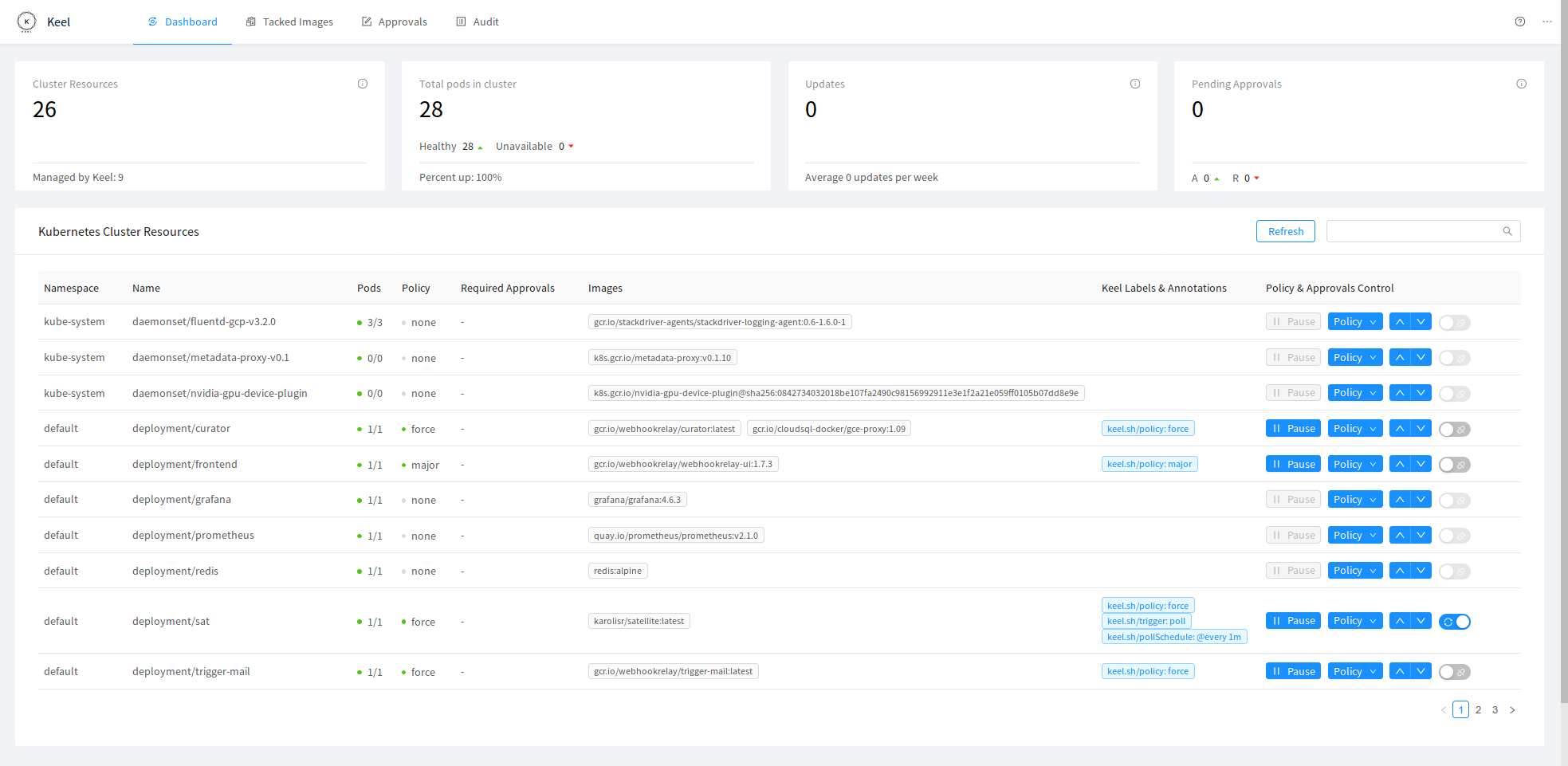
Admin dashboard allows you to:
- Enable/disable automated updates
- Set/change policies
- Enable/disable polling
- View all tracked images
- See audit logs (updates, approvals)
- Last 30 days statistics
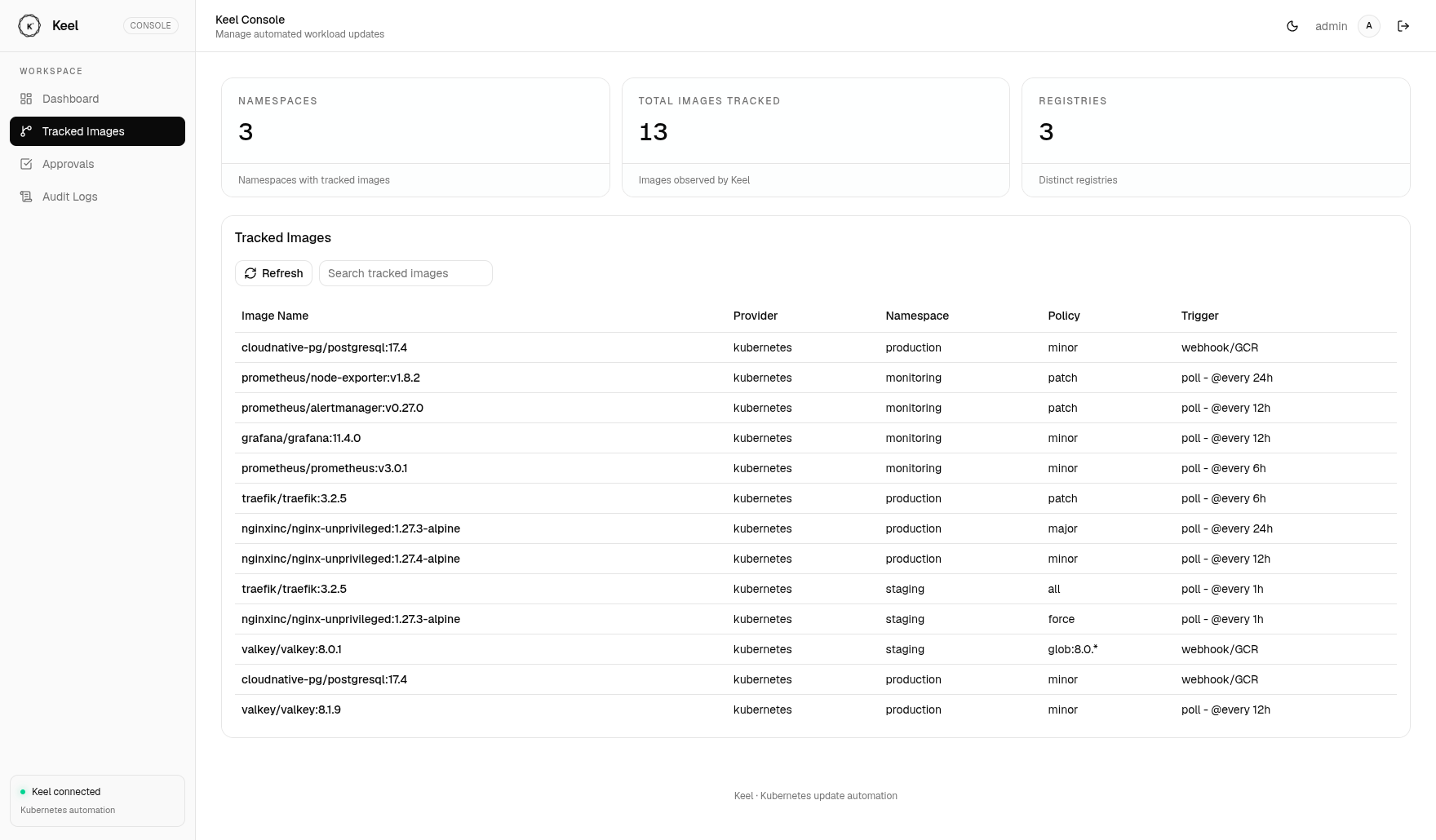
Tracked images
The tracked images view lists every image Keel watches, together with the provider, namespace, policy and the trigger that keeps it up to date:
Approvals
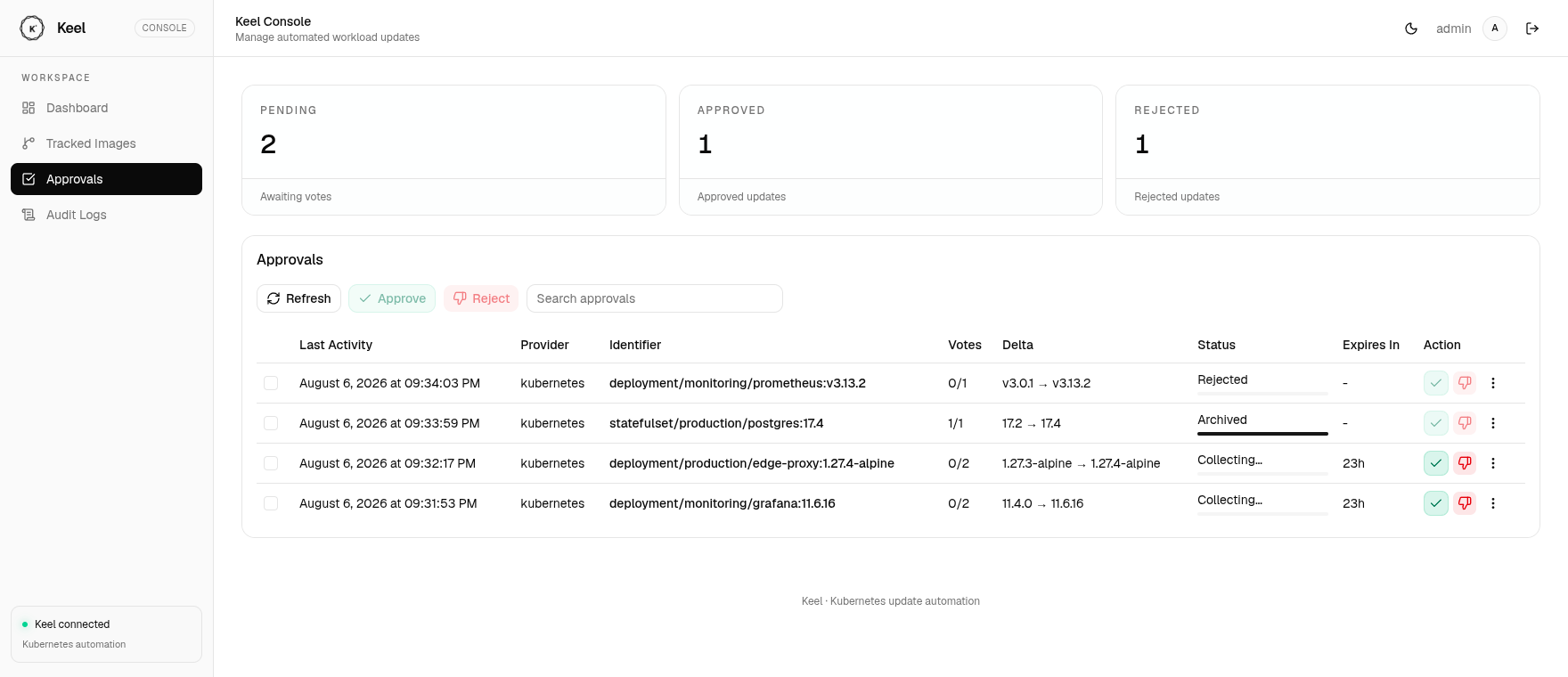
Updates for resources annotated with keel.sh/approvals wait here until they collect enough votes. You can approve or reject them directly from the dashboard:
Audit logs
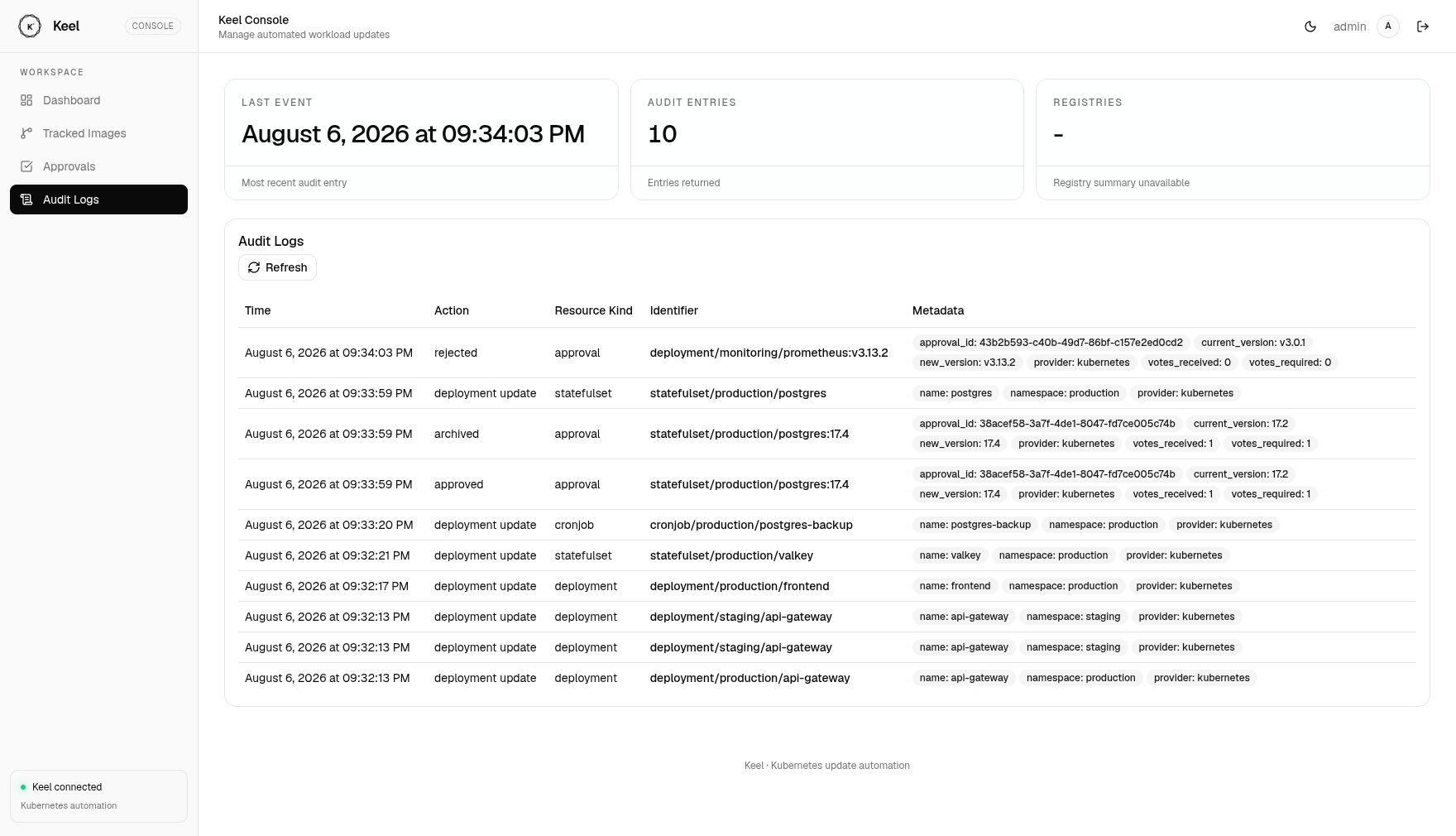
Every update, approval and rejection is recorded with its metadata:
Policies
Use policies to define when you want your application to be updated. Providers can have different mechanisms of getting configuration for your application, but policies are consistent across all of them. Following semver best practices allows you to safely automate application updates.
Available policies:
- all: update whenever there is a version bump or a new prerelease created (ie:
1.0.0->1.0.1-rc1) - major: update major & minor & patch versions
- minor: update only minor & patch versions (ignores major)
- patch: update only patch versions (ignores minor and major versions)
- force: force update even if tag is not semver, ie:
latest, optional label: keel.sh/match-tag=true which will enforce that only the same tag will trigger force update. - glob: use wildcards to match versions, example:
apiVersion: extensions/v1beta1
kind: Deployment
metadata:
  name: wd
  namespace: default
  labels:
      name: "wd"
  annotations:
      keel.sh/policy: "glob:build-*"  # <- build-1, build-2, build-foo will match this.
- regexp: use regular expressions to match versions, example:
apiVersion: extensions/v1beta1
kind: Deployment
metadata:
  name: wd
  namespace: default
  labels:
      name: "wd"
  annotations:
      keel.sh/policy: "regexp:^([a-zA-Z]+)$"
Pre-release tags
According to semver (http://semver.org/) spec, version tags can have additional metadata such as 1.0.0-dev, 1.0.0-prod, etc. Keel deals with semver tags by only allowing updates with the same version metadata.
Example:
- tag:
0.5.0-devpolicy:minorwill only be updated by0.6.0-devand not0.5.0-prod - tag
0.5.0policy:minorwill not be updated by0.6.0-rc1
This way you can easily separate different environments and update them independently.
Additional settings
Keel tries to mostly rely on your resource configuration files, such as deployment, daemonset, statefulset labels & annotations. Here is an example with all available options:
apiVersion: apps/v1
kind: DaemonSet
metadata:
  name: wd-ds
  namespace: default
  labels:
      name: "wd"
  annotations:
      keel.sh/policy: minor     # update policy (available: patch, minor, major, all, force)
      keel.sh/trigger: poll     # enable active repository checking (webhooks and GCR would still work)
      keel.sh/approvals: "1"    # required approvals to update
      keel.sh/match-tag: "true" # only makes a difference when used with 'force' policy, will only update if tag matches :dev->:dev, :prod->:prod
      keel.sh/pollSchedule: "@every 1m"
      keel.sh/notify: chan1,chan2    # chat channels to send notification to
      keel.sh/initContainers: "true" # track init containers (disabled by default)
spec:
  selector:
    matchLabels:
      name: wd-ds
  template:
    metadata:
      labels:
        name: wd-ds
    spec:
      containers:
      - name: wd-ds
        image: karolisr/webhook-demo:master
        imagePullPolicy: Always
        name: wd
        command: ["/bin/webhook-demo"]
        ports:
          - containerPort: 8090
        livenessProbe:
          httpGet:
            path: /healthz
            port: 8090
          initialDelaySeconds: 30
          timeoutSeconds: 10
Providers
Providers are direct integrations into schedulers or other tools (ie: Helm). Providers are handling events created by triggers. Each provider can handle events in different ways, for example Kubernetes provider identifies impacted deployments and starts rolling update while Helm provider communicates with Tiller, identifies releases by Chart and then starts update.
Available providers:
- Kubernetes (supports Deployments, DaemonSets, StatefulSets)
- Helm
While the goal is often the same, different providers can choose different update strategies.
Kubernetes
Kubernetes provider was the first, simplest provider added to Keel. Policies and trigger configuration for each application deployment is done through labels.
Policies are specified through a special annotation:
keel.sh/policy=all
A policy to update only minor releases:
keel.sh/policy=minor
Kubernetes example
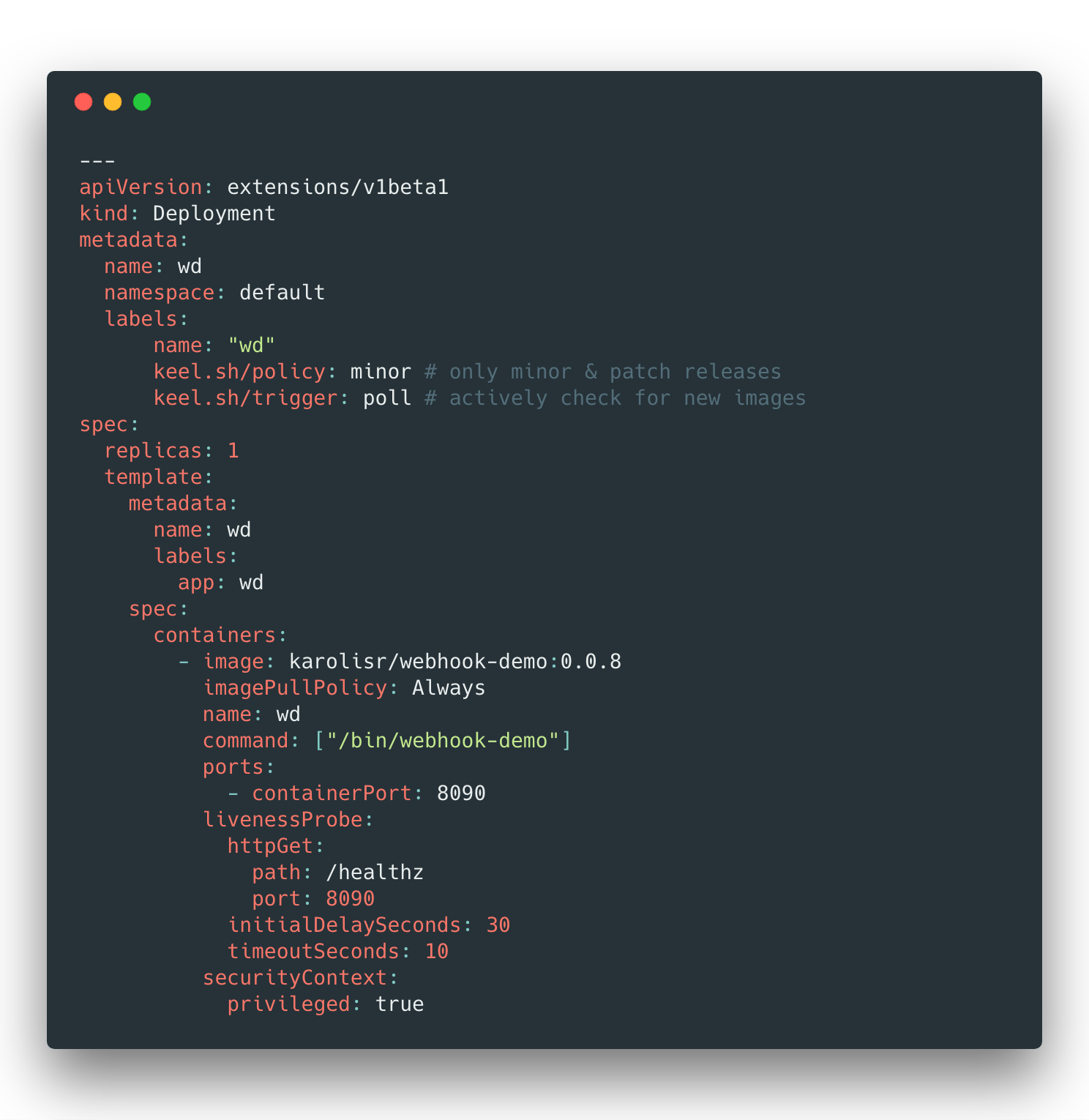
Here is an example application deployment.yaml where we instruct Keel to update container image whenever there is a new version:
apiVersion: extensions/v1beta1
kind: Deployment
metadata:
  name: wd
  namespace: default
  labels:
      name: "wd"
  annotations:
      keel.sh/policy: all
spec:
  replicas: 1
  template:
    metadata:
      name: wd
      labels:
        app: wd

    spec:
      containers:
        - image: karolisr/webhook-demo:0.0.2
          imagePullPolicy: Always
          name: wd
          command: ["/bin/webhook-demo"]
          ports:
            - containerPort: 8090
          livenessProbe:
            httpGet:
              path: /healthz
              port: 8090
            initialDelaySeconds: 30
            timeoutSeconds: 10
          securityContext:
            privileged: true
If Keel gets an event that karolisr/webhook-demo:0.0.3 is available - it will update deployment and therefore start a rolling update.
StatefulSet example
StatefulSets can also be updated by Kubernetes once image has changed:
apiVersion: apps/v1
kind: StatefulSet
metadata:
  name: wd
  namespace: default
  labels:
      name: "wd"
  annotations:
      keel.sh/policy: major
spec:
  replicas: 1
  serviceName: "wd"
  selector:
    matchLabels:
      app: wd
  template:
    metadata:
      name: wd
      labels:
        app: wd
    spec:
      containers:
        - image: karolisr/webhook-demo:0.0.8
          imagePullPolicy: Always
          name: wd
          command: ["/bin/webhook-demo"]
          ports:
            - containerPort: 8090
          livenessProbe:
            httpGet:
              path: /healthz
              port: 8090
            initialDelaySeconds: 30
            timeoutSeconds: 10
Deployment polling example
While the deployment above works perfect for both webhook and Google Cloud Pubsub triggers sometimes you can't control these events and the only available solution is to check registry yourself. This is where polling trigger comes to the rescue.
Note: when image with non-semver style tag is supplied (ie: latest) Keel will monitor SHA digest. If tag is semver - it will track and notify providers when new versions are available.
Add annotations:
keel.sh/policy=force # add this to enable updates of non-semver tags
keel.sh/trigger=poll
To specify custom polling schedule, use keel.sh/pollSchedule: "@every 10m" annotation. A duration string is a possibly signed sequence of decimal numbers, each with optional fraction and a unit suffix, such as "300ms", "1.5h" or "2h45m". Valid time units are "ns", "us" (or "µs"), "ms", "s", "m", "h".
Note that even if polling trigger is set - webhooks or pubsub events can still trigger updates
Example deployment file for polling:
apiVersion: extensions/v1beta1
kind: Deployment
metadata:
  name: wd
  namespace: default
  labels:
      name: "wd"
  annotations:
      keel.sh/policy: force
      keel.sh/trigger: poll
      keel.sh/pollSchedule: "@every 10m"
spec:
  replicas: 1
  template:
    metadata:
      name: wd
      labels:
        app: wd

    spec:
      containers:
        - image: karolisr/webhook-demo:latest # this would start repository digest checks
          imagePullPolicy: Always
          name: wd
          command: ["/bin/webhook-demo"]
          ports:
            - containerPort: 8090
          livenessProbe:
            httpGet:
              path: /healthz
              port: 8090
            initialDelaySeconds: 30
            timeoutSeconds: 10
          securityContext:
            privileged: true
DaemonSet polling example
Since DaemonSets have labels and annotations, their configuration is not different from Deployment or StatefulSet configuration:
apiVersion: apps/v1
kind: DaemonSet
metadata:
  name: wd-ds
  namespace: default
  labels:
      name: "wd"
  annotations:
      keel.sh/policy: minor
      keel.sh/trigger: poll
      keel.sh/pollSchedule: "@every 1m"
spec:
  selector:
    matchLabels:
      name: wd-ds
  template:
    metadata:
      labels:
        name: wd-ds
    spec:
      containers:
      - name: wd-ds
        image: karolisr/webhook-demo:0.0.8
        imagePullPolicy: Always
        name: wd
        command: ["/bin/webhook-demo"]
        ports:
          - containerPort: 8090
        livenessProbe:
          httpGet:
            path: /healthz
            port: 8090
          initialDelaySeconds: 30
          timeoutSeconds: 10
        securityContext:
          privileged: true
Helm
Helm helps you manage Kubernetes applications — Helm Charts helps you define, install, and upgrade even the most complex Kubernetes application. More information can be found on project's website https://helm.sh/.
Keel works directly with Tiller (a daemon that is used by Helm CLI) to manage release upgrades when new images are available.
Helm example
Keel is configured through your chart's values.yaml file.
Here is an example application values.yaml file where we instruct Keel to track and update specific values whenever there is a new version:
replicaCount: 1
image:
  repository: karolisr/webhook-demo
  tag: "0.0.8"
  pullPolicy: IfNotPresent
service:
  name: webhookdemo
  type: ClusterIP
  externalPort: 8090
  internalPort: 8090

keel:
  # keel policy (all/major/minor/patch/force)
  policy: all
  # images to track and update
  images:
    - repository: image.repository # [1]
      tag: image.tag  # [2]
If Keel gets an event that karolisr/webhook-demo:0.0.9 is available - it will upgrade release values so Helm can start updating your application.
- [1] resolves during runtime image.repository -> karolisr/webhook-demo
- [2] resolves during runtime image.tag -> 0.0.8
Helm same tag force updates
If you are not using versioning and pushing to the same tag, you should modify your template to change it on each update.
Current consensus on a best way to "force" update Helm releases is by modifying your pod spec template by adding:
date/deploy-date: {{ now | quote }}
annotation. This way Helm's Tiller will always detect a change in your template and Kubernetes will start a rolling update on the resource.
Helm configuration polling example
This example demonstrates Keel configuration for polling.
Note that even if polling trigger is set - webhooks or pubsub events can still trigger updates
replicaCount: 1
image:
  repository: karolisr/webhook-demo
  tag: "0.0.8"
  pullPolicy: IfNotPresent
service:
  name: webhookdemo
  type: ClusterIP
  externalPort: 8090
  internalPort: 8090

keel:
  # keel policy (all/major/minor/patch/force)
  policy: all
  # trigger type, defaults to events such as pubsub, webhooks
  trigger: poll
  # polling schedule
  pollSchedule: "@every 2m"
  # images to track and update
  images:
    - repository: image.repository # [1]
      tag: image.tag  # [2]
Helm polling private registry
If you are polling a private repository, you can set secret name for an image to use for authentication:
replicaCount: 1
image:
  repository: karolisr/webhook-demo
  tag: "0.0.8"
  pullPolicy: IfNotPresent
service:
  name: webhookdemo
  type: ClusterIP
  externalPort: 8090
  internalPort: 8090

keel:
  # keel policy (all/major/minor/patch/force)
  policy: all
  # trigger type, defaults to events such as pubsub, webhooks
  trigger: poll
  # polling schedule
  pollSchedule: "@every 2m"
  # images to track and update
  images:
    - repository: image.repository
      tag: image.tag
      imagePullSecret: my-secret-name
Triggers
Triggers are entry points into the Keel. Their task is to collect information regarding updated images and send events to providers.
Available triggers:
- Webhooks
- Native Webhooks
- DockerHub Webhooks
- Quay Webhooks
- Harbor webhooks
- Gitlab webhooks
- Github Webhooks
- Receiving webhooks without public endpoint
- Google Cloud GCR registry
- Polling
Webhooks
Webhooks are "user-defined HTTP callbacks". They are usually triggered by some event, such as pushing image to a registry. Native webhooks (simplified version) are accepted at /v1/webhooks/native endpoint with a payload that has name and tag fields:
{
  "name": "gcr.io/v2-namespace/hello-world",
  "tag": "1.1.1"
}
Keel by default runs HTTP server on port 9300. Create a service and either expose it to the internet or use https://webhookrelay.com to receive webhooks.
DockerHub Webhooks
DockerHub uses webhooks to inform 3rd party systems about repository related events such as pushed image.
https://docs.docker.com/docker-hub/webhooks - go to your repository on
https://hub.docker.com/r/your-namespace/your-repository/~/settings/webhooks/ and point webhooks
to /v1/webhooks/dockerhub endpoint. Any number of repositories
can send events to this endpoint.
Quay Webhooks
Documentation on how to setup Quay webhooks for Repository Push events is available here: https://docs.quay.io/guides/notifications.html. These webhooks should be delivered to /v1/webhooks/quay endpoint. Any number of repositories
can send events to this endpoint.
Azure Webhooks
Documentation on how to setup Azure webhooks is available here: https://docs.microsoft.com/en-us/azure/container-registry/container-registry-webhook. Azure webhooks should be delivered to /v1/webhooks/azure endpoint.
Harbor webhooks
Keel supports Harbor through both registry polling and
native Harbor webhooks. Harbor implements the Docker Registry V2 API, so no
Harbor-specific provider is required. Keep the Harbor project in the image
path; for example, Keel treats
harbor.example.com/library/ai-rag:latest as registry
harbor.example.com and repository library/ai-rag.
Polling Harbor
Use a semantic-version policy (all, major, minor, or patch) when Harbor
contains versioned tags. To redeploy when new content is pushed to a mutable tag
such as latest, use force with tag matching. This makes Keel compare the
tag's manifest digest instead of looking for a newer tag:
apiVersion: apps/v1
kind: Deployment
metadata:
  name: ai-rag
  namespace: ai-rag
  annotations:
    keel.sh/policy: force
    keel.sh/trigger: poll
    keel.sh/matchTag: "true"
    keel.sh/pollSchedule: "@every 5m"
spec:
  selector:
    matchLabels:
      app: ai-rag
  template:
    metadata:
      labels:
        app: ai-rag
    spec:
      containers:
        - name: ai-rag
          image: harbor.example.com/library/ai-rag:latest
          imagePullPolicy: Always
imagePullPolicy: Always controls how the kubelet pulls an image after a
rollout; it does not tell Keel to watch the tag. If keel.sh/policy: all is
used and the repository only contains latest, Keel correctly produces no
update event because all searches for a newer semantic-version tag.
Public Harbor projects need no credentials. For a private project, create a
Docker registry Secret in the workload namespace and reference it with the
standard Kubernetes imagePullSecrets field:
kubectl create secret docker-registry harbor-registry \
  --namespace ai-rag \
  --docker-server harbor.example.com \
  --docker-username "$HARBOR_USERNAME" \
  --docker-password "$HARBOR_PASSWORD"
spec:
  template:
    spec:
      imagePullSecrets:
        - name: harbor-registry
Keel uses the workload's pull secret when it queries Harbor. You can instead
set the keel.sh/imagePullSecret: harbor-registry annotation on the workload.
Harbor push webhooks
Polling is optional when Harbor can reach the Keel service. In the Harbor project, create an HTTP webhook with:
- event type Artifact pushed (
PUSH_ARTIFACT); - payload format Default (not CloudEvents);
- endpoint
https://keel.example.com/v1/webhooks/harbor.
The workload still needs an update policy. Use force for repeated pushes to
the same tag, or a semantic-version policy for versioned tags. If Keel is
configured with authenticated webhooks, also configure the matching Basic or
Bearer authorization header in Harbor.
Harbor installations using an internal certificate authority must make that CA
trusted by the Keel container. As a less secure installation-wide fallback,
setting INSECURE_REGISTRY=true disables registry TLS verification.
Gitlab webhooks
Keel supports Gitlab registry notifications also known as webhooks (https://docs.gitlab.com/ee/administration/container_registry.html#configure-container-registry-notifications). Gitlab webhooks should be delivered to /v1/webhooks/registry endpoint. Gitlab webhooks are based on Docker registry notifications.
Github Webhooks
Keel supports Github packages (https://github.com/features/packages). Github webhooks should be delivered to /v1/webhooks/github endpoint. In the Repository -> Setting -> Webhooks menu, set Content Type: application/json, and select Event Packages.
Receiving webhooks without public endpoint
If you don't want to expose your Keel service - recommended solution is https://webhookrelay.com/ which can deliver webhooks to your internal Keel service through a sidecar container.
Example sidecar container configuration for your deployments.yaml:
        - image: webhookrelay/webhookrelayd:latest
          name: webhookrelayd
          env:
            - name: KEY
              valueFrom:
                secretKeyRef:
                  name: webhookrelay-credentials
                  key: key
            - name: SECRET
              valueFrom:
                secretKeyRef:
                  name: webhookrelay-credentials
                  key: secret
            - name: BUCKET
              value: dockerhub
Google Cloud GCR registry
If you are using Google Container Engine with Container Registry - search no more, pubsub trigger is for you.
You will need to create a Google Service Account to use PubSub functionality.
Since Keel requires access for the pubsub in GCE Kubernetes to work - your cluster node pools need to have permissions. If you are creating a new cluster - just enable pubsub from the start. If you have an existing cluster - currently the only way is to create a new node-pool through the gcloud CLI (more info in the docs):
Create a node pool with enabled pubsub scope
gcloud container node-pools create new-pool --cluster CLUSTER_NAME --scopes https://www.googleapis.com/auth/pubsub
Create a service account
Detailed tutorial on creating and configuring service account to access Google services is available here: https://cloud.google.com/kubernetes-engine/docs/tutorials/authenticating-to-cloud-platform.
High level steps:
- Create a service account through Google cloud console with a role:
roles/pubsub.editor(Keel needs to create topics as well for GCR registries). - Furnish a new private key and choose key type as JSON.
- Import credentials as a secret:
kubectl create -n <KEEL NAMESPACE> secret generic pubsub-key --from-file=key.json=<PATH-TO-KEY-FILE>.json
- Configure the application with the Secret
Update Keel's environment variables
Make sure that in the deployment.yaml you have set environment variables PUBSUB=1, PROJECT_ID=your-project-id and GOOGLE_APPLICATION_CREDENTIALS to your secrets yaml.
Polling
Since only the owners of docker registries can control webhooks - it's often convenient to use polling. Be aware that registries can be rate limited so it's a good practice to set up reasonable polling intervals. While configuration for each provider can be slightly different - each provider has to accept several polling parameters:
- Explicitly enable polling trigger
- Supply polling schedule (defaults to 1 minute intervals)
Cron expression format
Custom polling schedule can be specified as cron format or through predefined schedules (recommended solution).
Available schedules:
| Entry | Description | Equivalent To |
|---|---|---|
| @yearly (or @annually) | Run once a year, midnight, Jan. 1st | 0 0 0 1 1 * |
| @monthly | Run once a month, midnight, first of month | 0 0 0 1 * * |
| @weekly | Run once a week, midnight on Sunday | 0 0 0 * * 0 |
| @daily (or @midnight) | Run once a day, midnight | 0 0 0 * * * |
| @hourly | Run once an hour, beginning of hour | 0 0 * * * * |
Example deployment file with enabled polling:
apiVersion: apps/v1
kind: DaemonSet
metadata:
  name: wd-ds
  namespace: default
  labels:
      name: "wd"
  annotations:
      keel.sh/policy: minor     # update policy (available: patch, minor, major, all, force)
      keel.sh/trigger: poll     # enable active repository checking (webhooks and GCR would still work)
      keel.sh/pollSchedule: "@every 1m"
spec:
  selector:
    matchLabels:
      name: wd-ds
  template:
    metadata:
      labels:
        name: wd-ds
    spec:
      containers:
      - name: wd-ds
        image: karolisr/webhook-demo:master
        imagePullPolicy: Always
        name: wd
        command: ["/bin/webhook-demo"]
        ports:
          - containerPort: 8090
Polling with AWS ECR
If you are using polling trigger with Amazon ECR registry, Keel deployment requires several environment variables:
AWS_ACCESS_KEY_ID=AKIA.........
AWS_SECRET_ACCESS_KEY=3v..............
AWS_REGION=us-east-2 # <- where your registry is
Documentation on setting up credentials can be found here: https://docs.aws.amazon.com/amazonswf/latest/awsrbflowguide/set-up-creds.html.
IAM Role
You can also take advantage of the iam-role without using explicit keys in the environmental variables. You can attach the following policy to your role
{
    "Version": "2012-10-17",
    "Statement": [
        {
            "Effect": "Allow",
            "Action": [
                "ecr:*",
                "ec2:*"
            ],
            "Resource": "*"
        }
    ]
}
In your Keel deployment file, you simply need to add the specific annotation to use your role. For example, if you ise kube2iam you should add the following:
apiVersion: apps/v1
kind: Deployment
metadata:
  name: keel
spec:
  replicas: 1
  template:
    metadata:
      annotations:
        iam.amazonaws.com/role: arn:aws:iam::1234567890:role/my-role
If you use the Helm Chart to deploy Keel, you just need to add the annotation under the podAnnotations object in the values.yml.
Intervals
You may also schedule a job to execute at fixed intervals. This is supported by formatting the cron spec like this:
@every <duration>
where duration is a string accepted by time.ParseDuration.
For example, @every 1h30m10s would indicate a schedule that activates every 1 hour, 30 minutes, 10 seconds.
Tip: If you want to disable polling support for your Keel installation - set environment variable POLL=0.
Approvals
Users can specify on deployments and Helm charts how many approvals do they have to collect before a resource gets updated. Main features:
- non-blocking - multiple deployments/helm releases can be queued for approvals, the ones without specified approvals will be auto updated.
- extensible - current implementation focuses on Slack but additional approval collection mechanisms are trivial to implement.
- out of the box Slack integration - the only needed Keel configuration is Slack tokens, Keel will start requesting approvals and users will be able to approve.
- stateful - uses SQLite for persistence so even after updating itself (restarting) it will retain existing info.
- self cleaning - expired approvals will be removed after deadline is exceeded.
Enabling approvals
Approvals are enabled by default but currently there is only one way to approve/reject updates: Slack - bot mentions like:
@keel get approvals- get all pending/approved/rejected approvals@keel approve <identifier>- approve specified request.@keel reject <identifier>- reject specified request.
Make sure you have set export SLACK_BOT_TOKEN=<your slack bot token here> and
export SLACK_APP_TOKEN=<your slack app tooken here>environment variable for Keel deployment.
If you wish to specify a special channel for approval requests, supply SLACK_APPROVALS_CHANNEL=<approvals channel name> environment variable and then invite Keel bot to that channel.
Configuring via Kubernetes deployments
The only required configuration for Kubernetes deployment to enable approvals is to add keel.sh/approvals: "1" with a number (string! as the underlying type is map[string]string) of required approvals.
apiVersion: extensions/v1beta1
kind: Deployment
metadata:
  name: wd
  namespace: default
  labels:
      name: "wd"
  annotations:
      keel.sh/policy: all
      keel.sh/trigger: poll
      keel.sh/approvals: "1"
Configuring via Helm charts
To enable approvals for a Helm chart update Keel config section in values.yaml with a required number of approvals:
replicaCount: 1
image:
  repository: karolisr/webhook-demo
  tag: "0.0.13"
  pullPolicy: IfNotPresent
service:
  name: webhookdemo
  type: ClusterIP
  externalPort: 8090
  internalPort: 8090

keel:
  # keel policy (all/major/minor/patch/force)
  policy: all
  # trigger type, defaults to events such as pubsub, webhooks
  trigger: poll
  # polling schedule
  pollSchedule: "@every 1m"
  # approvals required to proceed with an update
  approvals: 1
  # approvals deadline in hours
  approvalDeadline: 24
  # images to track and update
  images:
    - repository: image.repository
      tag: image.tag
Configuring Slack
Slack configuration can be sometimes quite confusing. If something has changed, please create an issue.
Step 1: creating an application (bot)
Visit https://api.slack.com/apps and create a new application from a manifest file and copy/paste the following manifest:
{
    "display_information": {
        "name": "keel"
    },
    "features": {
        "bot_user": {
            "display_name": "keel",
            "always_online": false
        }
    },
    "oauth_config": {
        "scopes": {
            "bot": [
                "app_mentions:read",
                "channels:read",
                "chat:write",
                "users:read",
                "channels:history"
            ]
        }
    },
    "settings": {
        "event_subscriptions": {
            "bot_events": [
                "app_mention"
            ]
        },
        "interactivity": {
            "is_enabled": true
        },
        "org_deploy_enabled": false,
        "socket_mode_enabled": true,
        "token_rotation_enabled": false
    }
}
Bot scopes explanation
app_mentions:read- allows the bot to read messages that mention the botchannels:read- allows the bot to list the available channels on which the bot is invited into. This is used to retrieve the channel identifier from the approval channel name.chat:write- allows the bot to write to the channel it is invited to.users:read- allows the bot to read user information, this is needed to retrieve the bot identifier from the bot name and ensure that we found the bot.channels:history- allows the bot to read the channel history. This is used to retrieve and update an approval message with the latest information.
Note: The needed scopes may vary depending on the channel type. (private or public). For private channel, the scope groups:<action> should be used instead.
Step 2: Install the app
Once the application created, it can be installed on the wanted workspace.
This can be done under Settings > Install App menu.
Step 3: Invite the bot
The bot must be invited into all channels (the channel given in the SLACK_APPROVALS_CHANNEL and all channels given in SLACK_CHANNELS).
This can be done directly in slack, by mentioning the bot into a channel.
Step 4: Supplying bot token to Keel
A bot token was automatically created since the step 1 with the scopes from the manifest file. The token can be seen under the Features > OAuth & Permissions menu of the application settings page.
This token can be used as value for the SLACK_BOT_TOKEN environment variable.
Step 5: Create an App level token
Unlike the bot token, the application level token is not generated automatically.
In the application settings, under the Basic Information menu, go to the App-Level Tokens settings and generate a new scoped token.
The token must define the following scopes:
authorizations:readconnections:write
The token can be used as value for the SLACK_APP_TOKEN environment variable.
Congratulations! Your slack bot is configured.
Approving through Slack example
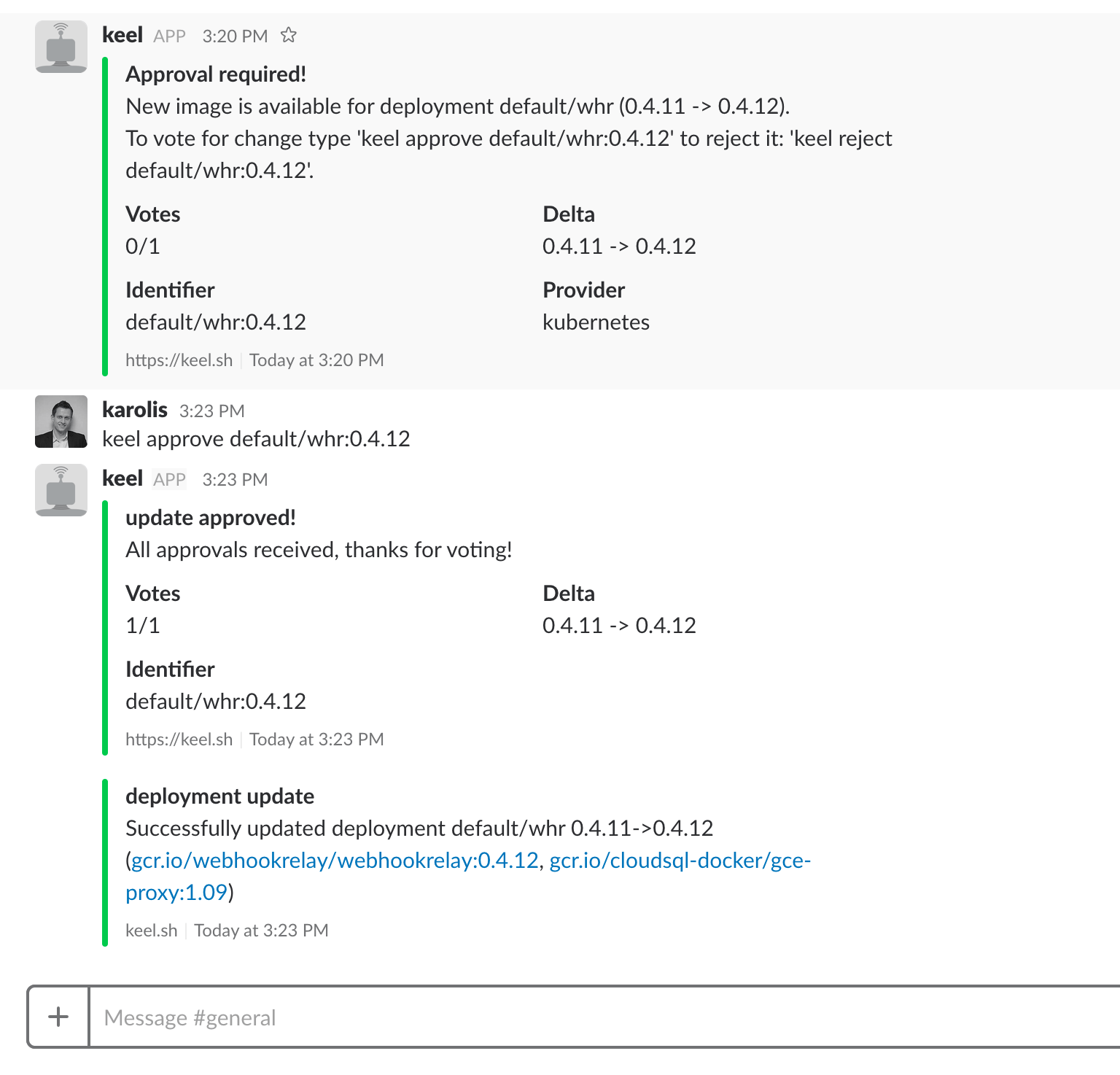
Keel will send notifications to your Slack group about pending approvals. Approval process is as simple as replying to Keel:
- Approve:
@keel approve default/whr:0.4.12 - Reject it:
@keel reject default/whr:0.4.12
Example conversation:
Approving through Hipchat example
Coming soon...
Managing approvals through HTTP endpoint
For third party integrations it can be useful to approve/reject/delete via HTTP endpoint. You can send an approval request via HTTP endpoint:
Method: POST
Endpoint: /v1/approvals
{
  "identifier": "default/myimage:1.5.5", // <- identifier for the approval request
  "action": "approve", // <- approve/reject/delete, defaults to "approve"
  "voter": "john",
}
Listing pending approvals through HTTP endpoint
You can also view pending/rejected/approved update request on /v1/approvals Keel endpoint (make sure you have service exported). Example response:
Method: GET
Endpoint: /v1/approvals
[
	{
		"provider": "helm",
		"identifier": "default/wd:0.0.15",
		"event": {
			"repository": {
				"host": "",
				"name": "index.docker.io/karolisr/webhook-demo",
				"tag": "0.0.15",
				"digest": ""
			},
			"createdAt": "0001-01-01T00:00:00Z",
			"triggerName": "poll"
		},
		"message": "New image is available for release default/wd (0.0.13 -> 0.0.15).",
		"currentVersion": "0.0.13",
		"newVersion": "0.0.15",
		"votesRequired": 1,
		"deadline": "2017-09-26T09:14:54.979211563+01:00",
		"createdAt": "2017-09-26T09:14:54.980936804+01:00",
		"updatedAt": "2017-09-26T09:14:54.980936824+01:00"
	}
]
Notifications
Keel can send notifications on successful or failed deployment updates. There are several types of notifications - trusted webhooks or Slack, Hipchat, Mattermost, Teams messages. Anything else (ntfy, Gotify, Telegram, Matrix, Pushover, OpsGenie, PagerDuty and more) is covered by Shoutrrr notifications.
Notification types:
Pre-deployment update - fired before doing update. Can be used to drain running tasks.
{
	"name":"preparing to update deployment",
	"message":"Preparing to update deployment <your deployment namespace/name> (gcr.io/webhookrelay/webhook-demo:0.0.10)",
	"createdAt":"2017-07-23T23:51:46.478440258+01:00",
	"type":"preparing deployment update",
	"level":"LevelDebug"
}
Successful deployment update - fired after successful update.
{
	"name":"deployment update",
	"message":"Successfully updated deployment <your deployment namespace/name> (gcr.io/webhookrelay/webhook-demo:0.0.10)",
	"createdAt":"2017-07-23T23:51:46.478440258+01:00",
	"type":"deployment update",
	"level":"LevelSuccess"
}
Failed deployment update - fired after failed event.
{
	"name":"deployment update",
	"message":"Deployment <your deployment namespace/name> (gcr.io/webhookrelay/webhook-demo:0.0.10) update failed, error: <error here> ",
	"createdAt":"2017-07-23T23:51:46.478440258+01:00",
	"type":"deployment update",
	"level":"LevelError"
}
Release notes in notifications
You can optionally set a release notes link (or anything that's allowed by annotation value or Helm chart value) in your configuration.
If you are using Kubernetes, use annotation keel.sh/releaseNotes:
apiVersion: extensions/v1beta1
kind: Deployment
metadata:
  name: wd
  namespace: default
  labels:
      name: "wd"
  annotations:
      keel.sh/policy: minor
      keel.sh/releaseNotes: "https://github.com/keel-hq/keel/releases"
If you are using Helm, your Keel config now accepts releaseNotes:
name: app1
image:
  repository: gcr.io/v2-namespace/hello-world
  tag: 1.1.0

keel:
  policy: force
  trigger: poll
  images:
    - repository: image.repository
      tag: image.tag
      releaseNotes: https://github.com/keel-hq/keel/releases
Release notes will be sent with a successful update.
Webhook notifications
To enabled webhook notifications provide an endpoint via WEBHOOK_ENDPOINT environment variable inside Keel deployment.
Webhook payload sample:
{
	"name": "update deployment",
	"message": "Successfully updated deployment default/wd (karolisr/webhook-demo:0.0.10)",
	"createdAt": "2017-07-08T10:08:45.226565869+01:00"
}
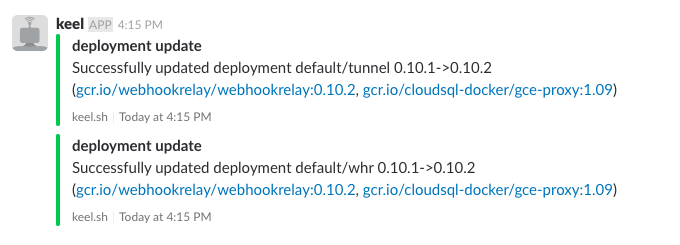
Slack notifications
First slack must be configured, see Configuring Slack
You should also provide SLACK_CHANNELS environment variable with a comma separated list of channels where these notifications should be delivered to.
Note that the bot must be invited into all channels provided to that environment variable.
Keel will be sending messages when deployment updates succeed or fail.
HipChat notifications
HipChat documentation is missing, if you are using it, please add some examples.
Mattermost notifications
Mattermost is an open source Slack alternative, it's written in Go and React.
If you don't have a Mattermost server, you can set one up by using Docker:
docker run --name mattermost-preview -d --publish 8065:8065 mattermost/mattermost-preview
Server should be reachable on: http://localhost:8065/
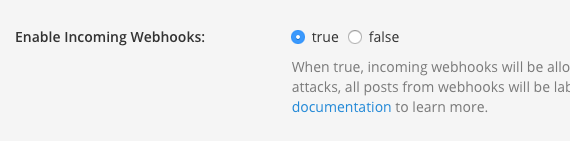
Now, enable "incoming webhooks" in your Mattermost server. Documentation can be found in the incoming webhooks section:
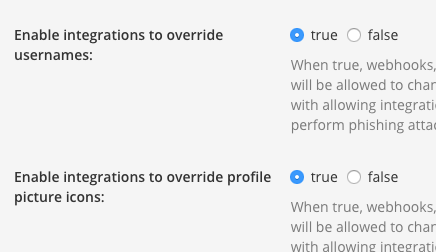
Also, you should enable icon and username override so users know that webhooks are coming from Keel:
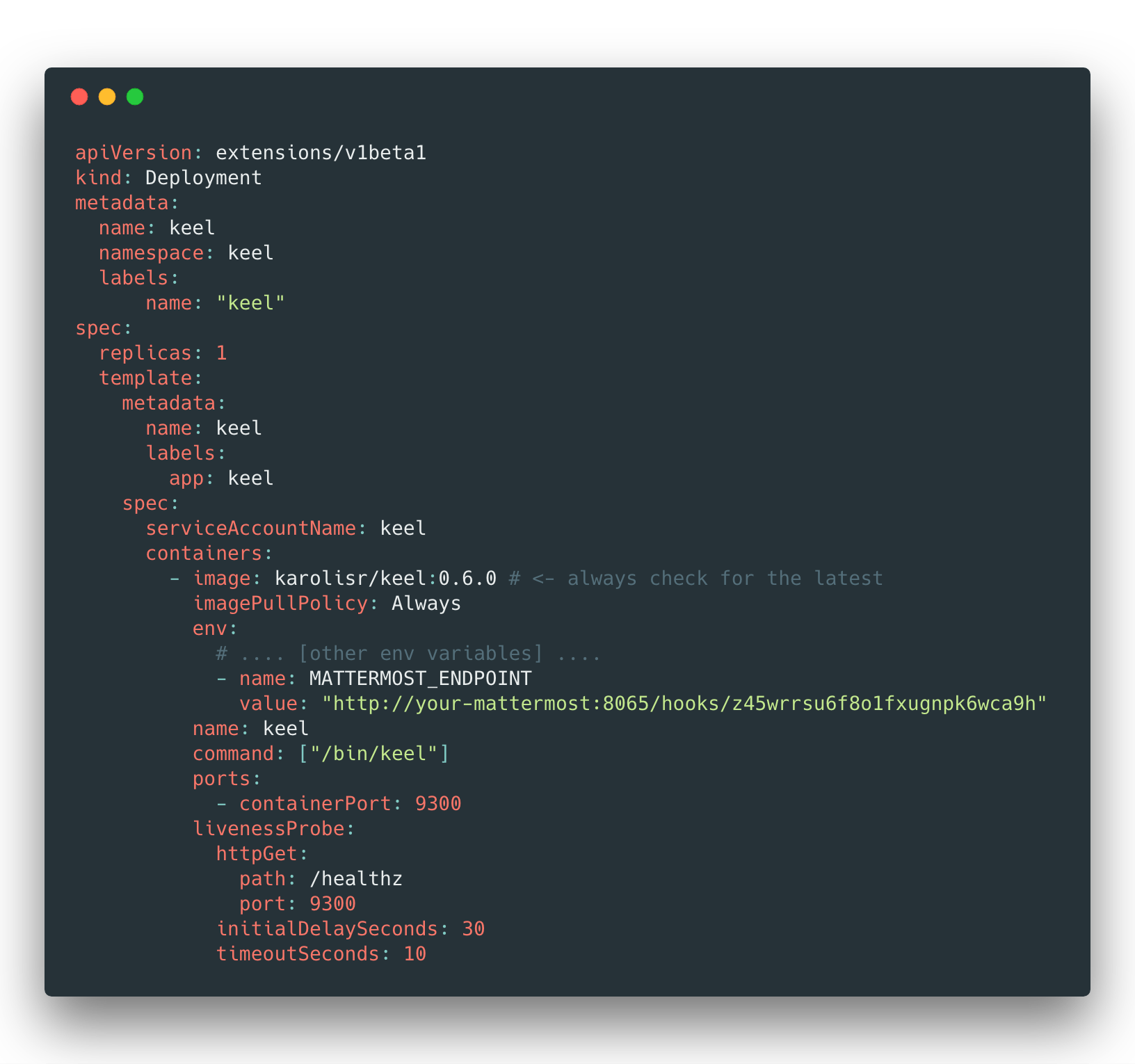
Now, set MATTERMOST_ENDPOINT environment variable for Keel with your Mattermost webhook endpoint:
That's it, Keel notifications for Mattermost enabled:

If you want to override bot's username, you can supply
MATTERMOST_USERNAME=somethingelseenvironment variable.
Teams notifications
MS Teams allows you to set up a custom incoming webhook.
The process linked above results in a webhook url. Pass that to Keel via the TEAMS_WEBHOOK_URL=https://the.webhook/provided/by/teams environment variable.
Discord notifications
Discord allows you to set up incoming webhooks in a channel.
Configure notifications by setting the DISCORD_WEBHOOK_URL=https://the.webhook/provided/by/discord environment variable.
Shoutrrr notifications
Shoutrrr reaches a large number of notification services through a single URL format. This is the way to notify a service that Keel has no dedicated sender for.
Supported services include ntfy, Gotify, Telegram, Matrix, Pushover, Pushbullet, Bark, Join, OpsGenie, PagerDuty, Signal, Twilio, Rocket.Chat, Zulip, Lark, WeCom, Notifiarr, Google Chat, MQTT, IFTTT, SMTP and a generic webhook, as well as Slack, Discord, Teams and Mattermost. The shoutrrr services documentation has the URL format for each one.
Keel's dedicated Slack, Discord, Teams, Mattermost and mail senders keep working and remain the better choice for those services, because they build service specific payloads (Discord embeds, for example) that Shoutrrr's generic message format cannot express. You can run both at the same time.
Enable it by setting the SHOUTRRR_URLS environment variable to one or more service URLs:
SHOUTRRR_URLS="ntfy://ntfy.sh/my-keel-topic"
Several destinations are separated by whitespace or newlines, not commas. Shoutrrr encodes list properties inside the URL query using commas, so a comma is part of a URL rather than a separator between two of them:
SHOUTRRR_URLS="ntfy://ntfy.sh/my-keel-topic telegram://110201543:AAHdqTcvCH1vGWJxfSeofSAs0K5PALDsaw@telegram?chats=111,222"
An optional SHOUTRRR_TIMEOUT sets the per service send timeout as a Go duration, defaulting to 10s.
Service URL examples
| Service | URL |
|---|---|
| ntfy | ntfy://ntfy.sh/my-keel-topic |
| ntfy (self hosted, authenticated) | ntfy://username:[email protected]/my-keel-topic |
| Gotify | gotify://gotify.example.com/AzyoeNS.D-A_yolo |
| Telegram | telegram://110201543:AAHdqTcvCH1vGWJxfSeofSAs0K5PALDsaw@telegram?chats=@keel_channel |
| Pushover | pushover://shoutrrr:apiToken@userKey |
| Matrix | matrix://user:[email protected]?rooms=%23keel:matrix.example.com |
| OpsGenie | opsgenie://api.opsgenie.com/eb243592-faa2-4ba2-a551-1afdf565c889 |
| PagerDuty | pagerduty://events.pagerduty.com/eb243592faa24ba2a5511afdf565c889?severity=critical |
| Generic webhook | generic://example.com/api/v1/notify?@Authorization=Bearer%20token123 |
| SMTP | smtp://user:[email protected]:587/[email protected]&[email protected] |
A room alias such as #keel:matrix.example.com has to be written as %23keel:matrix.example.com, and any @ prefixed query key on the generic service becomes an outgoing HTTP header.
Kubernetes example
Service URLs embed bot tokens and API keys, so keep them in a secret rather than in the deployment manifest:
kubectl -n keel create secret generic keel-shoutrrr \
  --from-literal=SHOUTRRR_URLS="ntfy://ntfy.sh/my-keel-topic gotify://gotify.example.com/AzyoeNS.D-A_yolo"
        env:
          - name: SHOUTRRR_URLS
            valueFrom:
              secretKeyRef:
                name: keel-shoutrrr
                key: SHOUTRRR_URLS
          # optional, defaults to 10s
          - name: SHOUTRRR_TIMEOUT
            value: "30s"
Helm example
The chart stores the URLs in the Keel secret for you:
shoutrrr:
  enabled: true
  urls:
    - "ntfy://ntfy.sh/my-keel-topic"
    - "telegram://110201543:AAHdqTcvCH1vGWJxfSeofSAs0K5PALDsaw@telegram?chats=111,222"
  # optional, defaults to 10s
  timeout: "30s"
shoutrrr.urls also accepts a plain pre-formatted string if you would rather supply the list from an existing value.
What to expect
The notification type and name become the title, and the message is followed by the event details. A successful deployment update arrives like this:
Title: deployment update: update resource

Successfully updated deployment default/wd 0.0.9->0.0.10 (karolisr/webhook-demo:0.0.10)

Resource: deployment
Identifier: deployment/default/wd
Level: success
name: wd
namespace: default
provider: kubernetes
Details are rendered into the message body rather than passed as structured fields, because only a couple of shoutrrr services implement its rich sender interface and every other service silently discards fields. The Keel event level is also passed to shoutrrr as the message level, so services that support priorities (ntfy, Gotify, Pushover) can act on it.
A few behaviours worth knowing:
- Credentials are kept out of the logs. Keel never logs a service URL, only a redacted identifier of the form
scheme://host/***. Send failures are reported by service scheme, for examplegotify. - Each URL is initialised independently. A malformed URL, or one naming an unknown service, is logged (redacted) and ignored while the rest keep working. The sender is only disabled when no URL at all is usable.
- A notification counts as delivered once any service accepts it. Keel retries a failed sender with a backoff, which would re-deliver to services that already received the message, so failure is only reported when every service failed. Individual failures are always logged.
- All notifications go to every configured URL. Shoutrrr does not take part in the per-deployment channel overrides described below - use
NOTIFICATION_LEVELto control the volume. - Keel's
successlevel has no shoutrrr equivalent and is sent asInfo, andfatalis sent asError.
Notification levels
Set notification levels via NOTIFICATION_LEVEL environment variable. Available levels: debug, info, success, warn, error, fatal. This setting defaults to info.
Overriding default channels per deployment
Some notification providers such as Slack and Hipchat allow apps to send notifications to multiple channels.
For standard Kubernetes deployments use annotation with channels separated by commas: keel.sh/notify=channelName1,channelName2.
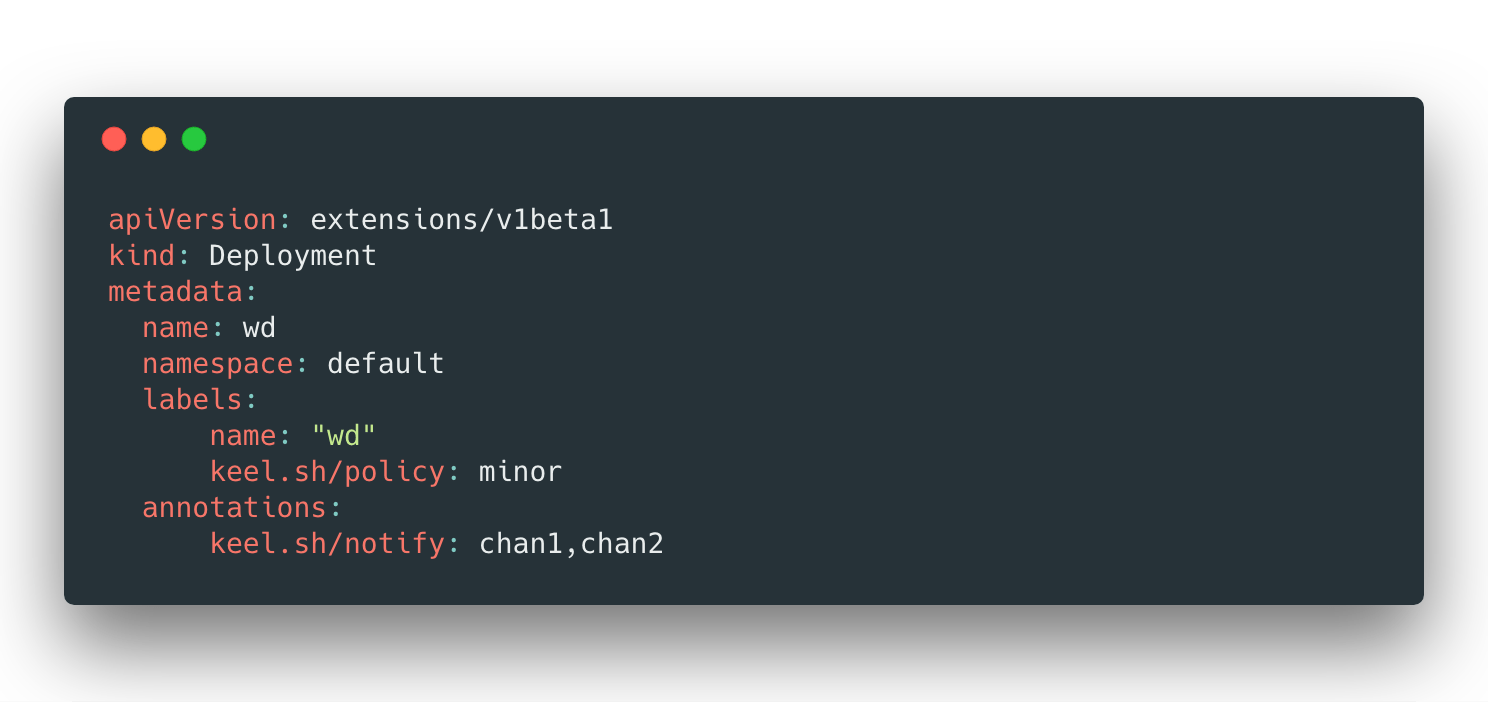
For Helm chart please specify notificationChannels string list to Keel config section in values.yaml:
notificationChannels:
  - chan1
  - chan2
Your values.yaml should look like this: